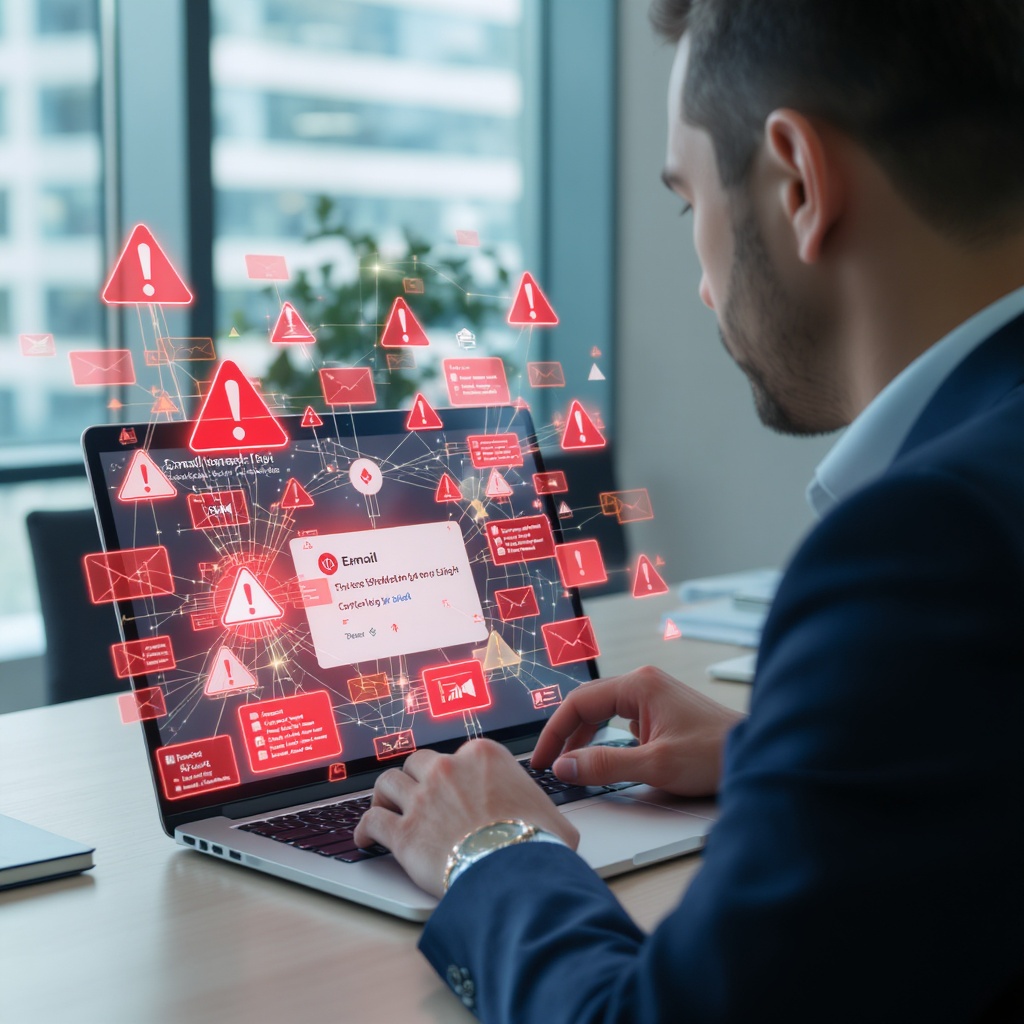
Practical Phishing Detection and Reporting: A Guide for Organizations Without Security Staff
Phishing is a message that tries to make you trust the wrong person, link, file, account, or request. It can arrive by email, text message, chat, social media direct message, or phone. The safest response is consistent across channels: pause, verify independently, report, then delete when the evidence is preserved and no further response is needed.
This guide is for individuals, families, and small teams that do not have a security operations center or dedicated security staff. It explains what a person can do immediately and what a small organization should document before an incident occurs. It is a practical operating guide, not a promise that any single filter, training session, or security product will catch every attack.
How to recognize phishing before you act
A suspicious message does not need to look obviously fake. Treat the request as the object of inspection. A familiar logo, a real display name, a known phone number, or an apparently correct email thread can be copied, spoofed, or sent from a compromised account.
Unexpected requests and unusual context
Pause when a message asks you to do something you were not expecting: sign in, open a document, review a payment, change payroll or bank details, share a file, buy gift cards, confirm an identity, or provide personal information. A request can be malicious even when the sender appears to be a colleague, relative, supplier, school, bank, or government office.
Urgency, secrecy, and authority pressure
“Do this now,” “keep this confidential,” “your account will be closed,” and “do not call me” are pressure tactics. Urgency is not proof of fraud, but it is a reason to stop the normal process rather than make an exception. A real emergency still permits independent verification through a known-good channel.
Sender and Reply-To mismatches
Check the complete sender address, not only the display name. In email, compare the From, Reply-To, and, where available, Return-Path or authentication results. An unexpected mismatch is a warning. It is not conclusive proof because legitimate mailing services sometimes use different delivery domains, and a compromised real account may show no mismatch. Do not reply to resolve the question; verify through a separate channel.
Lookalike domains and misleading destinations
Attackers may use a spelling that is one character away from a real domain, a different top-level domain, a subdomain that puts the trusted name in the wrong place, or an internationalized domain that looks similar. In accounts.example.com.attacker.test, the controlling domain is attacker.test, not example.com. A shortened URL hides the destination rather than making it safe. QR codes hide it behind a camera step.
Unexpected attachments, credential prompts, and “unsubscribe” bait
Be cautious with an unexpected attachment, especially a document that asks you to enable content, sign in, change a security setting, or call a number. Never provide a password, MFA code, recovery code, payment-card number, Social Security number, or other personal data because a message requests it. Do not use an “unsubscribe” link in a suspicious message: it can confirm that your address is active or send you to another harmful page. Report it through the provider or approved organization channel instead.
Inspect links and messages safely on desktop and mobile
You do not need to visit a suspicious destination to inspect it. The CISA guidance on recognizing and reporting phishing recommends slowing down, checking the sender and destination, and verifying through a method you already trust.
- On a desktop: move the pointer over a link without clicking. Read the full preview in the browser status area. If the message has a button, inspect the underlying link rather than trusting its label. If the address is truncated, copy it as text or ask the designated reporting contact to analyze it; do not paste it into a browser.
- On a phone or tablet: press and hold a link to display the destination preview, or use the mail app’s copy-link option. Do not tap through to a login page just to see where it goes. For a QR code, use the camera preview to read the destination as text, check the domain, and close it without signing in if anything is unexpected.
- For attachments: do not open, save, enable macros, or “preview” a file you did not expect. Tell the reporting contact the file name and message subject. If your provider offers a built-in report action, use that action instead of forwarding the file around.
- For texts, chats, social messages, and calls: do not use the supplied link or callback number. Open the official app or website yourself, use a known contact, or start a new conversation with the person through an established channel.
Inspection is not a requirement to prove that a message is malicious. If you are unsure, stop and report it. The goal is to avoid the unsafe action, not to win an investigation from your inbox.
Pause, verify independently, report, then delete
Use this four-step workflow for a suspicious message that you have not acted on:
- Pause. Do not click, open, reply, scan, call, approve an MFA prompt, download, pay, or enter information. If someone is pressuring you live, end the call or conversation.
- Verify independently. Use a phone number from your existing contacts, a company directory, a bank card or statement, a bookmarked application, or the organization’s official website. Start a new message or call; do not use contact details supplied by the suspicious message. For a payment or account change, require the normal second-person approval.
- Report. Use the provider’s report-phishing control and your organization’s designated channel. Include enough information for the recipient to investigate, and say clearly whether you clicked, opened, replied, entered data, approved MFA, or sent money.
- Delete after preservation and reporting. Once the message has been reported and any needed evidence is preserved, delete it, remove it from other inboxes if you are the owner, and block the sender when appropriate. If the message is part of an active investigation, follow the reporting contact’s retention instructions instead of deleting it.
Never verify a suspicious request by replying to the suspicious message or calling the number it provides. Independent verification means the message did not choose the channel.
How to report a suspicious message
What an individual should do
Use the mail, messaging, or social platform’s built-in report-phishing or report-spam control when it is available. In Gmail, use the Report phishing option in Gmail. In Outlook, use Microsoft’s instructions for reporting phishing and other suspicious messages. The exact button varies by provider and account type; if you cannot find one, contact the provider through its official help center.
Before deleting, preserve the original message or a screenshot and note the sender, subject, timestamp, destination, and what happened. Do not forward a malicious attachment to friends or coworkers for a second opinion. If you already clicked or shared something, say so plainly when reporting it. A fast, accurate report helps the provider and the people around you contain the campaign.
What a small organization should do
Name one primary reporting owner and one backup before the next campaign. Publish one reporting route—such as a report button, a dedicated mailbox, a ticket category, or an approved Teams or Slack channel—and make it visible during onboarding. The owner should acknowledge reports, preserve evidence, check whether others received the message, block or remove it when safe, and route confirmed incidents to the IT provider, managed service provider, insurer, legal counsel, or incident specialist according to the organization’s procedure.
The reporting route should capture:
- date and time received, the recipient, sender address or phone number, display name, Reply-To address, subject, and message channel;
- the full link or QR destination as text, attachment name and type, screenshots, and original message or email headers when available;
- the requested action and any known recipients, affected systems, or other people who received it;
- exact actions taken: opened, clicked, scanned, replied, called, downloaded, entered credentials or MFA data, approved a prompt, disclosed information, or made a payment;
- who was notified, when they were notified, and what containment or follow-up was assigned.
Do not publish suspicious links or sensitive screenshots in a public chat. Restrict evidence to people who need it, and redact passwords, MFA codes, personal data, and payment details before sharing broadly.
When to use external reporting paths
Choose the path that fits the harm. For a suspected fraud, identity theft, or impersonation scam affecting a person in the United States, use the FTC ReportFraud.gov form and follow the FTC’s phishing reporting guidance. If money moved or bank details were exposed, contact the bank or payment provider immediately using a known-good number; ask what recall, freeze, or fraud process applies. If there is an immediate threat or local crime, contact local law enforcement.
For suspected internet-enabled crime, financial loss, or a broader online campaign, file with the FBI Internet Crime Complaint Center (IC3). IC3 says to keep relevant information and submit a complaint even when you are unsure whether the matter meets a specific threshold. An IC3 report does not replace contacting your bank, employer, platform, or local law enforcement. Keep the confirmation details with your incident record.
Practice scenario
Practice: respond to a suspicious message
You receive a suspicious message. Which response follows the safest incident-response path?
Anonymous exercise: it sends or stores no selection, credentials, authentication codes, or personal data.
Facilitated tabletop exercise
Tabletop: report an urgent supplier invoice message
Facilitator setup: Set aside 10 minutes. Before starting, fill in the approved provider report action and organizational reporting channel, the primary and backup reporting owners, and the IT/MSP escalation contact. Keep this as a discussion; participants do not need to handle a real message.
Prompt
A familiar supplier sends an unexpected urgent invoice message with an unfamiliar sign-in link. Several staff members received it. Ask the team what they would do first and how they would verify the request. After the first discussion, reveal: one colleague clicked the link but did not enter credentials. What should happen next?
Discuss
- How can the team verify the invoice through a known supplier phone number or an established contact channel, without replying to the message or using its link?
- Which provider report action and organizational channel should staff use, and who is the primary reporting owner with the backup if that person is unavailable?
- What should the report record about recipients and whether anyone clicked, opened an attachment, replied, or entered information? Who should receive the report after the revealed click?
- If someone entered credentials or opened an attachment, whom should they notify immediately, and what should they do while waiting for the reporting owner or IT/MSP contact?
Debrief
For untouched messages, report through the provider and approved organizational routes, preserve the original or a screenshot as directed, then delete when safe. A link click or attachment interaction needs prompt escalation to the named owner and IT/MSP contact, along with a record of what happened. If credentials were entered, use a known-clean device to change the exposed password, revoke active sessions where available, and ask the administrator to review the account and mailbox.
Safety boundary: Participants must not click or reply, investigate or test the link, circulate the attachment, or decide incident severity themselves. Report what happened and let the designated owner and IT/MSP contact direct next steps.
Escalation ladder: what happened determines the next step
Do not make the employee decide whether an event is “serious enough.” Report every suspicious message. The response owner can classify it after the facts are recorded.
Level 1 — Received only
If the person did not open, click, reply, call, scan, download, or enter anything, report the message, preserve the evidence as appropriate, then delete it. The owner should check whether other inboxes or channels received the same campaign, block or quarantine the sender where safe, and record the near miss. A report-only message is still useful threat intelligence.
Level 2 — Clicked a link or scanned a QR code
Stop interacting with the page. Close it without signing in. Tell the reporting owner what device, account, and time were involved and whether anything downloaded. If a file downloaded or the device behaves unexpectedly, disconnect it from Wi-Fi or the wired network and call the IT provider or specialist. Do not erase the device or browser history before receiving evidence-preservation guidance.
Level 3 — Opened or executed an attachment
Stop using the attachment and report it immediately. If it executed code, requested macros, installed software, or caused unusual behavior, disconnect the device from the network, leave it powered on unless the responder instructs otherwise, and call the IT provider or incident specialist. Do not send the file to more people. The responder may need endpoint, email, and identity logs.
Level 4 — Submitted a password, MFA code, recovery detail, or approved a prompt
Use a known-clean device to change the affected password through the real service, revoke active sessions if the provider supports it, and notify the response owner immediately. Deny unexpected MFA prompts; do not approve another prompt to “fix” the problem. Ask the identity or email administrator to review sign-ins, new MFA methods, forwarding rules, OAuth grants, and password-recovery changes. If the same password was reused elsewhere, change it there too.
Level 5 — Disclosed sensitive information
Escalate immediately if personal data, customer data, health information, confidential business information, credentials, tax data, or security answers were disclosed. Record exactly what was shared, with whom, and when. The organization may need legal, privacy, insurance, contractual, or regulatory advice; do not promise a notification timeline before the responsible owner assesses the facts.
Level 6 — Payment, bank-detail change, or gift-card event
Call the bank or payment provider immediately using a known-good number and ask about stopping, recalling, freezing, or flagging the transaction. Notify the organization’s owner, finance lead, and insurer or incident contact according to the plan. Preserve the message, account details, invoice, payment instructions, approvals, and timeline. File applicable law-enforcement, FTC, and FBI IC3 reports. Do not continue the conversation with the sender or send a “test” payment.
These levels can overlap. A clicked link followed by credential entry is both a link event and a credential event; use the higher response. Speed matters, but accuracy matters too: tell responders what you know, what you do not know, and what you already did.
A small-team operating checklist
A small organization can make phishing response dependable with a one-page procedure and a few named responsibilities:
- Owner and backup: assign a primary incident/reporting owner and a backup who can respond during leave, evenings, and travel. Include their roles and approved contact methods in the procedure.
- Blame-free reporting: thank people for reporting near misses and clicks. The earlier the report, the more options the organization has. Do not punish someone for asking for help or for reporting an honest mistake.
- Shared escalation procedure: write the levels above, who can isolate a device, who calls the bank, who contacts the IT provider, and who decides whether legal, privacy, insurance, or law-enforcement advice is needed.
- Mail filtering and domain authentication: use the provider’s spam and phishing protections, configure SPF, DKIM, and DMARC for domains the organization controls, and review quarantine and spoofing alerts. These controls reduce exposure but do not make the inbox safe by themselves.
- MFA: require MFA for email, identity administration, finance, payroll, and remote access. Prefer phishing-resistant passkeys or security keys where supported; transition controls still need monitoring and user reporting.
- Updates and endpoint protection: keep operating systems, browsers, applications, anti-malware, and backup systems current. Patching and endpoint protection reduce the impact of unsafe actions but cannot replace verification.
- Short scenario practice: rehearse an urgent invoice, a fake account-lockout text, a suspicious QR code, and a message that someone clicked. Practice the exact words for pausing, independent verification, reporting, and escalation.
Review the checklist after every incident and near miss. Controls work as layers: no filter, MFA method, training, or reporting button guarantees safety, and a small team should assume that a determined message may get through.
Keep specialized response guidance separate
This guide covers general phishing detection and reporting. Business email compromise and payment-fraud response needs specialized financial controls, bank-recall steps, and mailbox investigation; use the Business Email Compromise: A Practical Detection and Response Guide. Ransomware containment and recovery requires isolation, evidence preservation, clean backups, and a recovery decision process; use the Practical Ransomware First Response guide. AI voice and deepfake verification needs its own out-of-band identity and payment-request procedures; use AI Voice Phishing and Deepfake Scams.
Do not wait to identify which specialized category applies before taking the safe first steps: stop the action, preserve evidence, notify the right owner, contain access when indicated, and report through the applicable channel.
Sources & Further Reading
- CISA, “Recognize and Report Phishing” — practical red flags, independent verification, and reporting behavior.
- Federal Trade Commission, “How To Recognize and Report Phishing Scams” — consumer warning signs and reporting options.
- Federal Trade Commission, “What You Need To Know About Government Impersonator Scams” — independent contact methods for impersonation attempts.
- FBI Internet Crime Complaint Center, “File a Complaint” — reporting path for suspected internet-enabled crime and financial loss.
- NIST SP 800-63B, Authentication and Lifecycle Management — authenticator and phishing-resistant authentication context.
- Google Help, “Report messages as spam” — Gmail reporting workflow.
- Microsoft Support, “Report phishing and other suspicious messages in Outlook” — Outlook reporting workflow.
Start today: publish the reporting channel, name the owner and backup, and practice one report-only scenario and one credential-submission scenario. People should know exactly what to do before an urgent message asks them to break the process.

Get your free pocket guide
Enter your work email and we'll send the SMB Phishing Defense Pocket Guide — 6 red flags + 5-step incident response playbook.
Check your inbox!
Your pocket guide is on its way.
No spam. Unsubscribe anytime. Unsubscribe